For the couple and planner
You prepare the guest list, create tables, and assign guests inside OhWedding. When the seating plan is ready, the app creates a public link and QR code.
 OhWedding
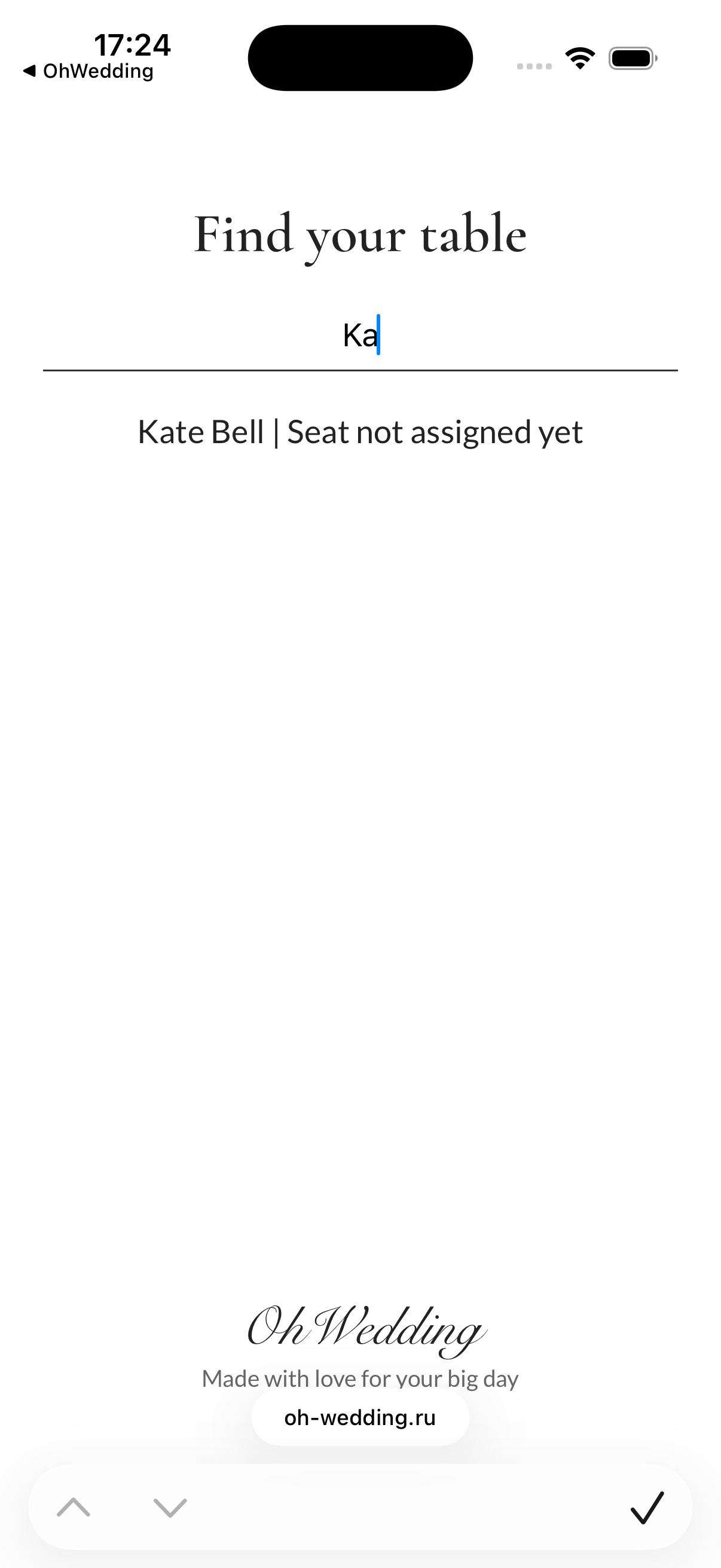
The OhWedding seating QR replaces paper guest lists at the entrance with a simple web page. A guest scans the QR code, enters their name, and sees which table they are assigned to. If seats have also been assigned on the floor plan, the page can show the exact seat number too.
You prepare the guest list, create tables, and assign guests inside OhWedding. When the seating plan is ready, the app creates a public link and QR code.
A guest opens the QR page, enters at least two characters of their name, and sees a result such as “Alice Smith | Table 4” or “Alice Smith | Table 4 | seats 1, 2”.
Open OhWedding and create a project. Add the main wedding details: couple names, date, budget, and any information you want to keep organized during planning.
The seating QR code belongs to a specific project. Without a project, there is nowhere to store the guest list, tables, seating plan, or public page.
The project must be synced with the server before the QR page can work properly. Guests open the page in a browser, so the seating data needs to be available online.
If you edited the project without internet, wait until synchronization completes before printing the QR code. Otherwise guests may see outdated seating or may not find themselves.
Fill in the guest list. Use clear names, because guests will search for themselves by name on the public page.
If a guest has a companion, mark “+1”. When seats are assigned on the floor plan, the page can show two adjacent seats if the layout supports it.
Add tables and name them the way you want guests to see them. If a table is named “2”, the English public page will display it as “Table 2”.
For international weddings, the English QR link uses ?lang=en. The
Russian page remains the default link without any language parameter.
This is the key step: until a guest is assigned to a table, they do not have a seating assignment for the public page. They will still be searchable, but the page will show “Seat not assigned yet”.
This is intentional. It helps you notice forgotten guests before printing and fix the seating plan in time.
By default, a guest may only have a table. A specific seat number appears only after guests have been placed on seats in the floor plan.
If you assign only the table, the guest sees “Table 4”. If you assign seats on the plan, the guest can see “Table 4 | seat 3”. A guest with “+1” may see two adjacent seats.
On the QR seating screen in the app, create the QR code. The app receives a public
link like https://oh-wedding.ru/seat/... and displays a QR code for it.
You can create the QR code through the wedding date. Starting the next day, creating a new code is no longer available.
If the app interface is in English, it can use the English link with
?lang=en. If the app is in Russian, it can use the default link.
Open the QR code on your phone and search for a few guests: one with only a table, one with a seat, one with “+1”, and one who may have been left unassigned.
Test before printing cards or signs. If you find a mistake, fix the seating in the app and open the same QR again: the link stays the same, while the data updates after synchronization.
Print the QR code and place it near the entrance, welcome area, floor plan, or registration table. Guests can search for themselves instead of looking through long printed lists.
A simple caption works best: “Scan the QR code and enter your name to find your table.” For international guests, you can print a separate QR code for the English version.
Do not use insults, threats, discriminatory language, profanity, harassment, or other harmful content in project names, guest names, table names, notes, or any data that may appear on a public page.
If the service is used for offensive, harmful, or illegal content, OhWedding may restrict access, disable the public page, delete the project, or delete the account without separate notice.
No. OhWedding uses one shared page and a unique wedding code. Each wedding gets its own link, but it is not a separate physical website.
The guest has been assigned to a table, but not to a specific seat on the floor plan. Assign seats on the plan to show seat numbers.
They will find their name and see “Seat not assigned yet”. This is better than hiding the guest, because the issue is easier to notice and fix.
Yes. Guests scan the QR code and find their own table. You may still keep a paper backup for guests without a phone or internet.
Use the English link with ?lang=en. The app can show an English QR
code when the user's interface language is English.
Usually no. The QR code points to the same link, and the page loads current data from the server. Update seating in the app and make sure the project syncs.
For six calendar months after the wedding date. The public page is then disabled, its code is deleted, and the old link returns a 404 response. The wedding project, guests, and seating data remain available in the app.